Product Configurator
Salespeople choose options for a configurable item on a sales quote or order, and Business Central creates the matching bill of materials automatically. No one has to build each variant by hand. The price follows the choices, and impossible combinations are stopped at the quote.
Who it is for. Companies that sell products with options, such as size, colour or motor. Used by product managers, salespeople and production or warehouse planners.
From request to installed app
Every app goes through the same steps. This is what each one looked like for the Product Configurator.
- RequestThe need was described in plain words, then screened and clarified before any design started.
- RequirementsThe requirements were written down and approved: four roles, the business rules and what is out of scope.
- Functional designA functional design with a test plan was produced and approved before anything was built.
- Storyboard reviewNine screens were shown as a storyboard for review, so the customer could see the app before it existed.
- Build and testsBuilt in stages, code reviewed, then compiled and tested automatically on a real Business Central 28.5 test environment.
- Sandbox installInstalled into a Business Central sandbox environment by managed install.
- User acceptanceThree user-acceptance walks on Business Central 28.5. The first two found real defects, which were fixed. The third passed.
- Training manualA training manual with real, annotated screenshots came with the app.
Requirements (excerpt)
What the customer needed, in business words.
The problem
Products with options need a variant item and a bill of materials for every combination. Building them by hand is slow and error-prone, and the price of each combination is worked out outside the system.
Goals
- Let salespeople choose options directly on the quote or order line.
- Create the matching assembly or production bill of materials automatically.
- Price each combination correctly the first time.
- Stop impossible combinations before they reach the workshop.
Selected requirements
- The unit price is the base price plus a surcharge for each chosen option.
- A configuration cannot be confirmed while a required option is empty or a combination is not allowed.
- The same choices reuse the configured item that already exists.
- A choice can require or exclude another choice.
- The quote's configuration carries over to the order unchanged.
- Only product managers can change options, choices and surcharges.
Functional areas
- Setup of configurable items, options and choices
- Configurator on sales quote and order lines
- Checks and links between choices
- Configured items and their bills of materials
- Pricing and costing
- Quote to order carry-over
- Clean-up of unused configured items
- Printed configuration sheet
- Access by role
Functional design (excerpt)
How the app behaves, before any code is written.
The design follows one story from the product manager who sets up options, to the salesperson who configures a line on a quote, to the planner who works the order with standard assembly or production steps. Each step is a storyboard scene with a real person, a real screen and the benefit it brings. Everything the app adds sits inside the pages people already use.
Main entities
- Configurable item
- Option
- Choice
- Choice component
- Choice link
- Configured item
- Configurator setup
Storyboard scenes
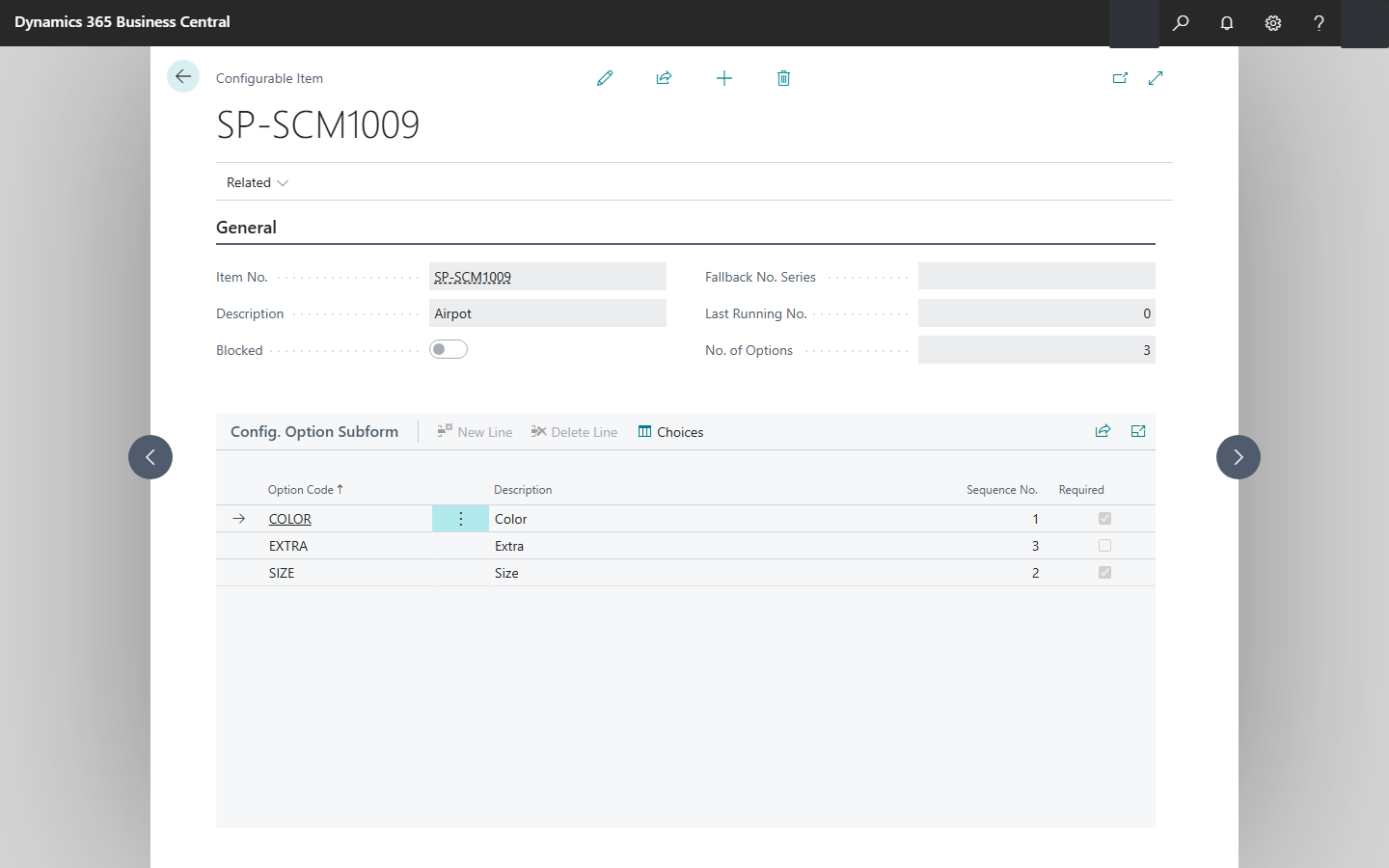
Screen from the sample company The product manager lists an item's options
The options live with the item, in one place, instead of in someone's head or a spreadsheet.
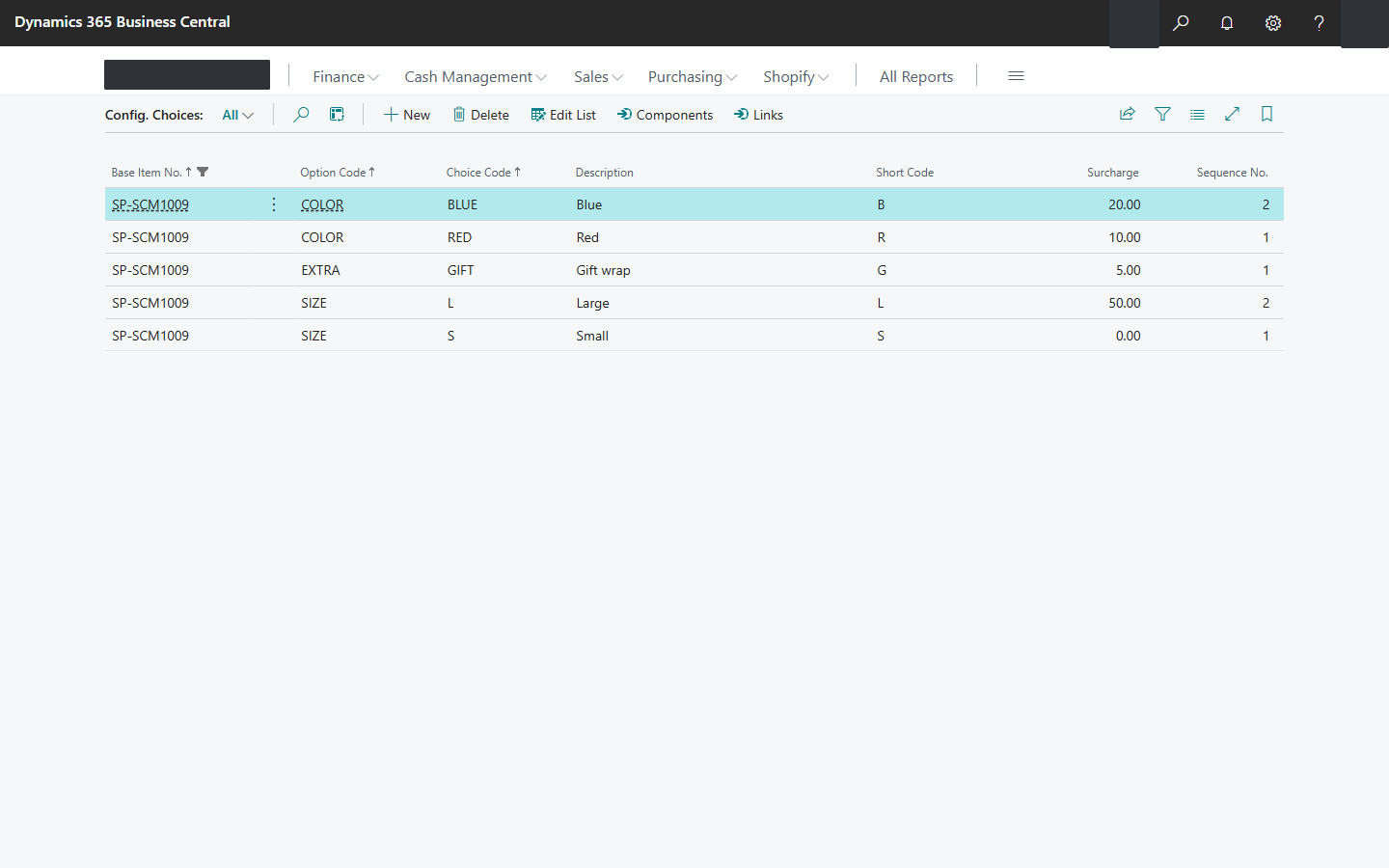
Screen from the sample company Each option gets its choices
Every rule that used to be checked by hand is written down once and applied on every sale.
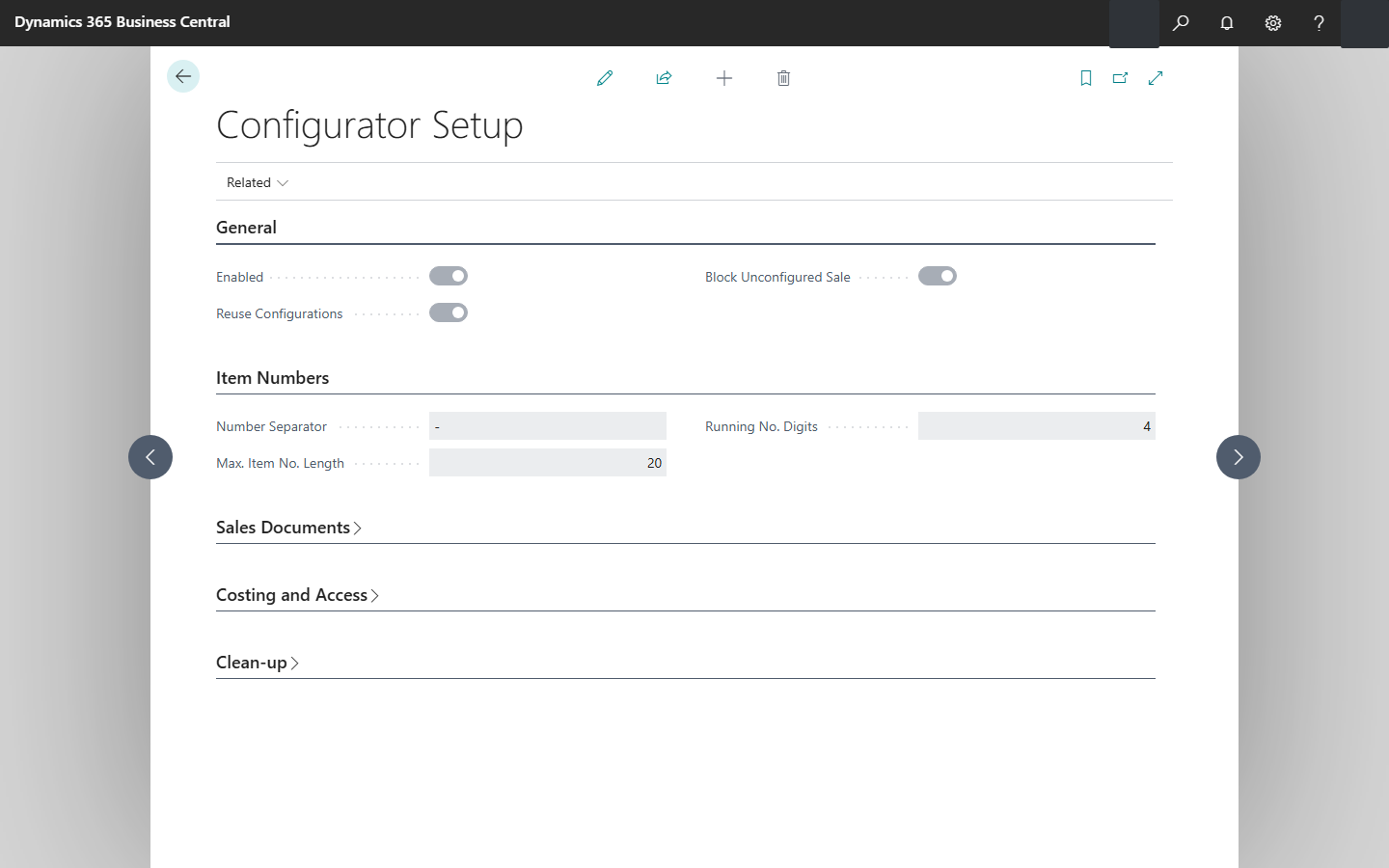
Screen from the sample company Company-wide settings, once
Every policy is a setting the company can change without a developer.
What the customer receives
- The app, installed in their Business Central
- The complete requirements document
- The complete functional design, with the storyboard
- The test and acceptance results
- The training manual
Training manual (excerpt)
Every app comes with a training manual that opens in a browser. Here is its table of contents and one sample section.
Table of contents
- 1. Overview
- 2. Installation
- 3. Setup
- 4. Permissions
- Product manager
- Salesperson
- 5. Daily tasks
- Configure an item on a sales line
- 6. Pages
- Configurator Setup
- Configurable Item
- Choices
- Sales Quote line
- Configurator
- Sales Order line
- Configured Items
- Configured Items Clean-up
- 7. Messages
- 8. Reports
- Configuration Sheet
- 9. Troubleshooting
- 10. Questions and answers
- 11. Glossary
- 12. Version history
Sample section
Configure an item on a sales line
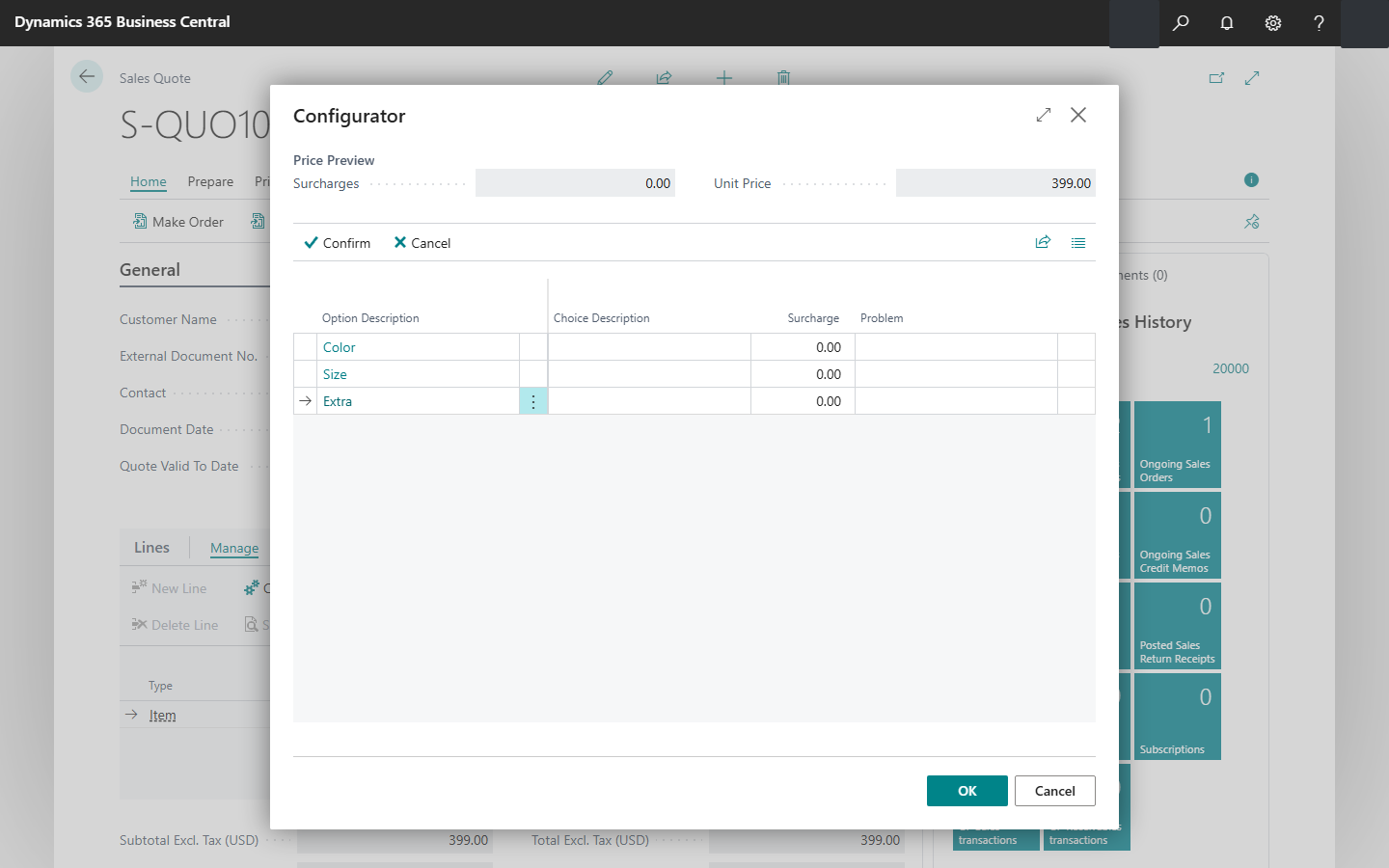
- On the sales quote line, choose Configure. The Configurator lists every option of the item. Pick a choice in the Choice Description column for each one.
- Watch the Price Preview. The surcharges and the unit price follow your choices.
- Choose Confirm. Required options must have a choice, and a combination that is not allowed is stopped with a message.
Want an app like this for your company?
Describe what you need in plain words. You review the design and the storyboard before anything is built.